

Have you ever experienced the QuickBooks screen turned black and white issue while using QuickBooks? Although the exact cause of this problem is not always easy to identify, it is often a sign of display-related issues, system errors, or software glitches. Understanding the reason behind this issue can help you fix it quickly and get QuickBooks back to normal.
QuickBooks helps businesses manage accounting, invoicing, payroll, and other financial tasks from a single platform. It offers advanced features to manage accounting and other business operations efficiently. However, after prolonged use, users may encounter certain technical problems. One common issue is the QuickBooks screen turned black and white error. In this article, we will explain why your QuickBooks screen turned black and white and provide easy-to-follow troubleshooting steps to resolve the issue.
In this article, we’ll explain the possible causes of the QuickBooks black-and-white screen issue and walk you through proven solutions to fix it.
What is the QuickBooks Black and White Screen Issue?
When the QuickBooks screen turns black and white, some areas of the QuickBooks window may appear black instead of white, while others may display the opposite. You may also notice a gray screen, missing or hard-to-see icons, black bars, gray lines, or other display irregularities that make it difficult to use the software. These visual issues can interrupt your workflow and reduce the usability of QuickBooks. To resolve the problem effectively, it is important to understand the possible causes of the QuickBooks screen turned black and white issue and apply the appropriate troubleshooting steps.
Why Did My QuickBooks Screen Turn Black and White?
Have you noticed, “Why did my QuickBooks screen turn black and white?” The issue can occur due to problems with either the QuickBooks application or your Windows system. Over time, display-related errors may develop because of outdated software, damaged system files, or incorrect display settings. Below are some of the most common reasons behind the QuickBooks screen turned black and white issue:
- Outdated or corrupted graphics drivers can create display compatibility issues and cause QuickBooks to appear in black and white.
- Graphics card or system memory issues may result in a blank or distorted QuickBooks screen.
- Damaged Windows registry files can affect how QuickBooks displays its interface.
- Incorrect screen resolution or display settings may cause black boxes, gray screens, or other visual problems in QuickBooks.
- Corrupted system firmware can also lead to display-related errors.
- Damaged QuickBooks company files may sometimes trigger display issues, including black and white lines.
- An outdated QuickBooks version may become incompatible with the latest Windows updates, leading to screen display problems.
- An incomplete or failed QuickBooks installation or update can also cause the QuickBooks screen to turn black and white.
Read Also: If your QuickBooks installation is damaged, you may experience various unexpected issues. You can also check our guide on [QuickBooks Error 1603] to troubleshoot installation-related problems.
Now that you know the possible causes of the QuickBooks screen turned black and white issue, let’s look at the troubleshooting methods to resolve it.
What Are the Signs of Display Issues in QuickBooks?
Are you experiencing display issues in QuickBooks? Identifying the symptoms early can help you troubleshoot the issue before it affects your work. Here are the most common signs:
- Improperly sized icons, especially in the top-right corner of the QuickBooks window.
- Missing buttons or unusually large fonts that make the interface difficult to use.
- Fields overlapping or hiding their labels, making it hard to enter or read information.
- A blurry, distorted, or unclear screen, particularly when maximizing or minimizing the QuickBooks window.
- A blank or black Home page that does not load properly.
- Transaction forms that do not fit the screen, causing parts of the form to be cut off.
- Oversized fonts or text that appears stretched and affects the overall layout of the application.
If you notice one or more of these signs, follow the troubleshooting methods below to resolve the QuickBooks display issue.
How Can You Quickly Fix the QuickBooks Screen Turned Black and White Issue?
Not sure where to start fixing the QuickBooks screen turned black and white issue? Before trying advanced troubleshooting methods, start with these quick fixes. They can often resolve temporary display glitches and restore the normal QuickBooks interface.
Step 1: Restart Your Computer and Server
Restart all the workstations and the server (if you’re using QuickBooks in a multi-user environment). A simple reboot can clear temporary system glitches that may be causing the display issue.
Step 2: Run the Reboot.bat File
The Reboot.bat file re-registers QuickBooks program files in Windows, which can help fix display-related problems.
Follow these steps:
- Close QuickBooks.
- Right-click the QuickBooks desktop icon and select Properties.
- Click Open File Location.
- Locate the Reboot.bat file.
- Right-click Reboot.bat and select Run as Administrator.
- Wait until the Command Prompt window closes automatically.
- Restart your computer and open QuickBooks again.
Step 3: End the QBW32.exe Process
If QuickBooks is running in the background, end the process before continuing with other troubleshooting methods.
Follow these steps:
- Press Windows + R, type taskmgr, and press Enter to open Task Manager.
- Go to the Processes tab.
- Locate QuickBooks (32-bit) or QBW32.exe.
- Right-click the process and select End Task.
- If you don’t see the process, QuickBooks is already closed, and you can proceed with the next troubleshooting steps.
Note: If you need to continue working without immediately fixing the issue, you can temporarily change the text color from black to white. This makes the text visible inside the black boxes, allowing you to continue using QuickBooks until you apply a permanent solution.
What Are the Best Ways to Fix the QuickBooks Screen Turned Black and White Issue?
Thinking of how to resolve the QuickBooks screen turned black and white issue? Follow the troubleshooting methods below in the recommended order. These solutions can help identify the root cause and restore the normal QuickBooks display.
Solution 1: Run the Quick Fix My Program Tool
The Quick Fix My Program tool, available in the QuickBooks Tool Hub, repairs common QuickBooks program issues that may cause display-related errors.
Step 1: Install the Latest Version of QuickBooks Tool Hub
If you do not already have the QuickBooks Tool Hub installed, follow these steps:

- Close QuickBooks and all other applications running on your computer.
- Open your web browser and download the latest version of the QuickBooks Tool Hub.
- Once the download is complete, open the QuickBooksToolHub.exe file.
- Click Yes if prompted by User Account Control (UAC).
- Accept the license agreement and follow the on-screen instructions to complete the installation.
- Click Finish after the installation is complete.
- Open the QuickBooks Tool Hub and go to the Home tab to verify that you are using the latest version.
Step 2: Run Quick Fix My Program
After installing the Tool Hub, run the Quick Fix My Program tool by following these steps:
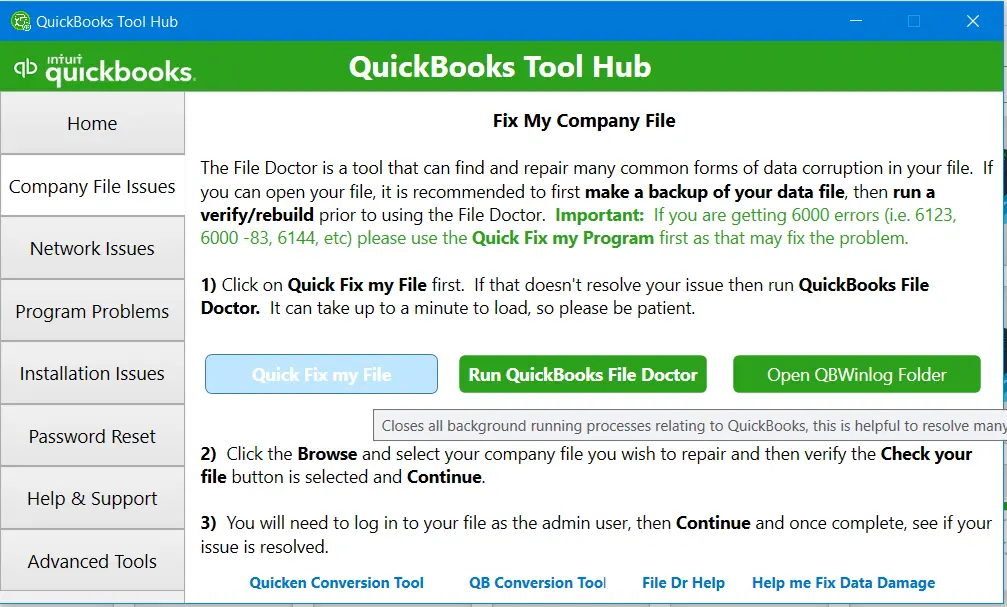
- Open the QuickBooks Tool Hub.
- Select Program Problems from the left panel.
- Click Quick Fix My Program.
- Wait for the tool to scan and repair common QuickBooks program issues.
- Once the repair process is complete, close the Tool Hub.
- Reopen QuickBooks and check whether the QuickBooks screen turned black and white issue has been resolved.
Solution 2: Update Your Video Card Drivers
An outdated or corrupted graphics (video card) driver can cause display issues in QuickBooks, including the QuickBooks screen turned black and white problem. Updating your graphics driver to the latest version may resolve the issue.
Follow these steps to update your graphics driver:
- Press Windows + R to open the Run dialog box.
- Type dxdiag and press Enter to open the DirectX Diagnostic Tool.
- Select the Display tab.
- Note down the Manufacturer name and the Display Driver Model shown under the device information.
- Visit your graphics card manufacturer’s official website.
- Search for the latest driver that matches your graphics card model and download it.
- Install the downloaded driver by following the on-screen instructions.
- After the installation is complete, restart your computer.
- Open QuickBooks and check if the QuickBooks screen turned black and white issue has been resolved.
Solution 3: Modify Display Settings Using the Registry Editor
To increase the Windows graphics resource limit, modify the Registry Editor settings by following the steps below. Follow these steps:
- Open the Start menu and type regedit in the search bar.
- Click Registry Editor to open it.
- Navigate to the following path:
- HKEY_LOCAL_MACHINE\SOFTWARE\Microsoft\Windows NT\CurrentVersion\Windows
- In the right pane, double-click GDIProcessHandleQuota.
- Under Base, select the Decimal option.
- Change the Value data from 10000 to 65535 and click OK.
- Close the Registry Editor.
- After the resource leak is resolved, change the Value data back to 10000.
- Close the Registry Editor and restart your computer.
Solution 4: Change the Windows Theme to Basic
Switching to the Windows Basic theme can help resolve display-related issues in QuickBooks.
Follow these steps:
- Right-click on your desktop and select Personalize.
- From the available themes, select the Basic theme.
- Restart your computer to apply the changes.
Solution 5: Edit the QBW.ini File
If the issue persists, you can edit the QBW.ini file by following these steps:
- Close the QuickBooks application.
- Press Windows + E to open File Explorer.
- Open the C: drive and navigate to the following path: ProgramData > Intuit > QuickBooks XX > QBW.ini (replace XX with your QuickBooks version).
- Open the QBW.ini file and scroll to the end of the file.
- Type :[COLORS] Classic=0 in the file.
- Save the File by pressing the Ctrl + S buttons together.
Solution 6: Re-register the QuickBooks Program Files
Re-registering the QuickBooks program files can help fix display-related issues caused by missing or improperly registered components.
- Go to the folder where the QuickBooks Reboot.bat file is located.
- Right-click the Reboot.bat file and select Run as administrator.
- Make sure you run the file with administrator rights.
- A Command Prompt window will open, and you will see several commands running automatically.
- Wait until the process is complete. The Command Prompt window will close on its own.
- Restart QuickBooks Desktop and check if the QuickBooks screen turned black and white issue has been resolved.
Solution 7: Fix the QuickBooks Online Black-and-White or Dark Mode Issue
If the QuickBooks Online screen appears black and white, grayscale, or unexpectedly dark, the problem is usually related to your browser settings or display theme. Since QuickBooks Online runs in a web browser, cached data, cookies, or browser extensions can affect how the application is displayed.
Follow these steps:
- Clear your browser’s cache and cookies.
- Close and reopen your browser.
- Sign in to QuickBooks Online again.
- Open QuickBooks in an Incognito or Private browsing window to check if the issue is caused by cached data or browser extensions.
- Click the Gear icon and select Themes.
- Switch between Light Mode and Dark Mode to refresh the display.
- Update your web browser to the latest version.
- Disable browser extensions that modify website colors or themes.
- Reopen QuickBooks Online and verify whether the display issue has been resolved.
Solution 8: Run QuickBooks File Doctor and Verify/Rebuild Data
Before making advanced system changes, run the built-in QuickBooks diagnostic tools. QuickBooks File Doctor and the Verify/Rebuild Data utility can detect and repair company file issues that may be contributing to display problems.
Follow these steps:
- Open the QuickBooks Tool Hub.
- Select Company File Issues.
- Click Run QuickBooks File Doctor.
- Select your company file and allow the tool to complete the scan.
- Open QuickBooks and check whether the issue is resolved.
- If the problem continues, go to File > Utilities > Verify Data.
- If QuickBooks detects data damage, select File > Utilities > Rebuild Data.
- Follow the on-screen instructions to repair the company file.
- Restart QuickBooks and verify whether the QuickBooks screen turned black and white issue has been fixed.
How to Fix Display Issues in QuickBooks Desktop for Mac
If you are using QuickBooks Desktop for Mac, display issues such as a black-and-white screen, blurry windows, or missing icons can occur due to outdated software or incorrect display settings. Follow the steps below to troubleshoot the issue.
- Update QuickBooks Desktop for Mac to the latest version.
- Install the latest macOS updates.
- Restart your Mac.
- Open System Settings > Displays and verify that the correct screen resolution is selected.
- Go to System Settings > Appearance and switch between Light and Dark mode.
- Reopen QuickBooks and check if the display issue has been resolved.
- If the issue persists, reinstall QuickBooks Desktop for Mac and try again.
How Do You Check If the Display Issue Is Resolved?
Think the issue is fixed? Use the checklist below to verify that everything is back to normal.
- Colors display correctly: The QuickBooks screen appears in full color, with no black-and-white display.
- Text is clear and easy to read: Menus, icons, buttons, and reports are sharp and free from blurriness or distortion.
- QuickBooks runs without display issues: Open different windows, forms, and reports to make sure there is no screen flickering, graphical glitches, or display lag.
If all of these checks look good, the QuickBooks display issue has been successfully resolved.
How Can You Prevent the QuickBooks Black and White Screen Issue?
Want to avoid this issue in the future? These preventive measures can help:
- Keep QuickBooks and Windows updated to ensure you have the latest fixes and performance improvements.
- Update your graphics driver regularly to maintain compatibility with your system and display.
- Avoid changing display settings unnecessarily, such as color filters, display scaling, or contrast settings.
- Restart your computer after installing updates to Windows or your graphics driver so the changes take effect properly.
- If you use QuickBooks Online, keep your web browser up to date and clear the browser cache periodically for the best performance.
- Taking these preventive steps can help keep your QuickBooks display functioning properly and minimize the risk of black-and-white screen issues in the future.
Conclusion
The QuickBooks screen turned black and white issue can occur due to outdated graphics drivers, incorrect display settings, corrupted QuickBooks files, or Windows-related compatibility problems. Identifying the underlying cause is the key to applying the right solution. This guide covered everything from quick fixes and advanced troubleshooting methods to solutions for QuickBooks Online and QuickBooks Desktop for Mac, helping you resolve the issue efficiently. If you’ve tried all the methods and the problem persists, it’s best to seek professional assistance to prevent further interruptions to your accounting tasks. If the issue persists after trying all the troubleshooting methods, contact a QuickBooks expert for further assistance.
Frequently Asked Questions
Question 1: Is the QuickBooks screen turned black and white issue caused by a hardware problem?
Answer: Not always. While a faulty graphics card or insufficient system resources can contribute to display issues, the problem is more commonly caused by outdated graphics drivers, incorrect display settings, or QuickBooks program-related issues.
Question 2: Can using multiple monitors cause the QuickBooks screen to display incorrectly?
Answer: Yes. Different screen resolutions or scaling settings across multiple monitors can sometimes cause display issues in QuickBooks. Using the same scaling percentage and resolution on all monitors may help resolve the problem.
Question 3: Does changing Windows display scaling affect QuickBooks?
Answer: Yes. High DPI scaling or custom display scaling settings can sometimes make QuickBooks appear blurry, distorted, or display black and white. Setting the recommended display scaling may resolve the issue.
Question 4: Is the QuickBooks screen turned black and white issue common after a Windows update?
Answer: Yes. Some Windows updates may change display settings or graphics driver compatibility, which can affect how QuickBooks is displayed. Updating your graphics driver and QuickBooks usually resolves the issue.
Question 5: Will the black and white screen issue damage my QuickBooks company file?
Answer: No. In most cases, this is only a display-related issue and does not affect your company data. However, if you suspect company file damage, you should verify the file using QuickBooks’ built-in utilities.
Question 6: Can antivirus or firewall software cause QuickBooks display problems?
Answer: Although uncommon, some security programs can interfere with QuickBooks processes or updates, leading to unexpected display behavior. Temporarily disabling the software or adding QuickBooks as an exception may help identify the cause.
Question 7: Does reinstalling QuickBooks fix the black and white screen issue?
Answer: A clean reinstallation can resolve the problem if it is caused by damaged program files or an incomplete installation. However, it should only be considered after trying the other troubleshooting methods.
Question 8: When should I contact a QuickBooks expert?
Answer: If the display issue continues after completing all the recommended troubleshooting steps, or if QuickBooks crashes along with the display problem, it’s best to contact a QuickBooks expert to diagnose and resolve the issue safely.